
Start here
What this plugin does, and the five minutes it takes to go live.
BlueGate for WooCommerce connects your store to your own Powertranz merchant account. You keep the money relationship with your bank; BlueGate carries each payment between your store and the processor.
- 1Download the plugin ZIP from your account and install it in WordPress.
- 2Paste your licence key to activate the site.
- 3Enter the Powertranz ID and password your bank issued you.
- 4Choose how customers pay and which cards you accept.
- 5Run the go-live checks, place one test order, then switch to live mode.
What you need first
Accounts, hosting and versions to have in place before installing.
| You need | Why |
|---|---|
| A Powertranz merchant account | Your bank or Powertranz onboarding contact issues the Powertranz ID and password the plugin uses. |
| A bank account for settlement | Powertranz settles approved payments into the account linked to your merchant agreement. |
| WordPress 6.4 or newer with WooCommerce 8.2 or newer | The plugin registers as a WooCommerce payment method on both the classic and block checkout. |
| PHP 8.0 or newer | The plugin is written for currently supported PHP releases. |
| An SSL certificate (HTTPS) | Live card payments are only offered on secure pages. The plugin refuses to show at checkout otherwise. |
| A BlueGate for WooCommerce licence key | Activates the site, unlocks automatic updates and support. |
Install the plugin
Upload the ZIP and activate it in WordPress.
- 1Download the latest BlueGate for WooCommerce ZIP (version 1.9.4) from the Downloads page in your account. Do not unzip it.
- 2In WordPress go to Plugins, then Add New Plugin, then Upload Plugin.
- 3Choose the ZIP file and select Install Now.
- 4Select Activate Plugin. A BlueGate menu appears in the left sidebar.
Step 1 — Activate your licence
One key, one site, activated in seconds.
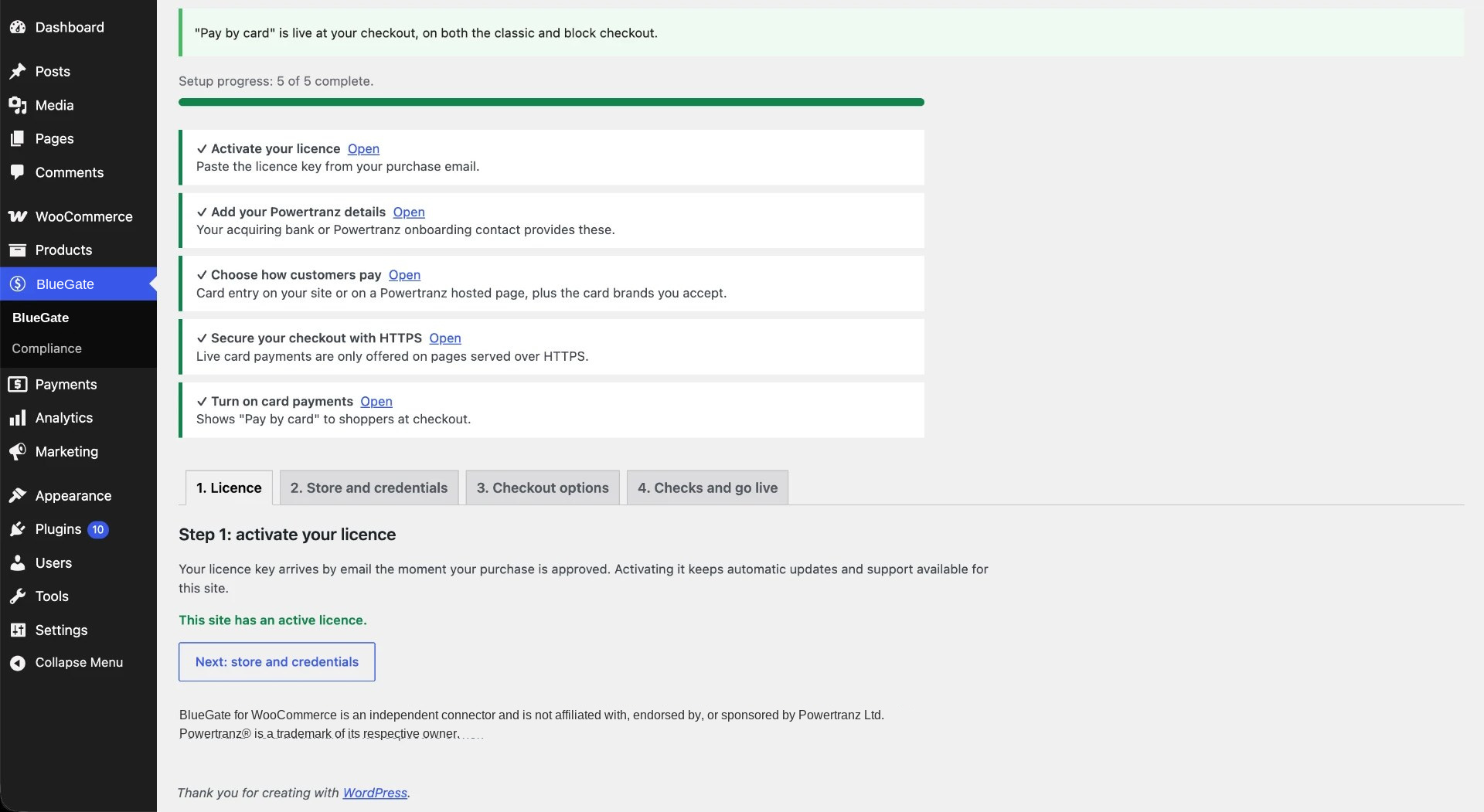
- 1Open BlueGate, then License.
- 2Paste the licence key from your purchase email, or copy it from the Licenses page in your account.
- 3Select Activate license. The screen confirms the site is licensed.
The licence is checked once a day. Moving to a new domain? Select Deactivate this site first, then activate on the new one — you can also release a site from the Licenses page in your account at any time.
Step 2 — Enter your Powertranz details
Credentials, mode and currency, saved for this store only.
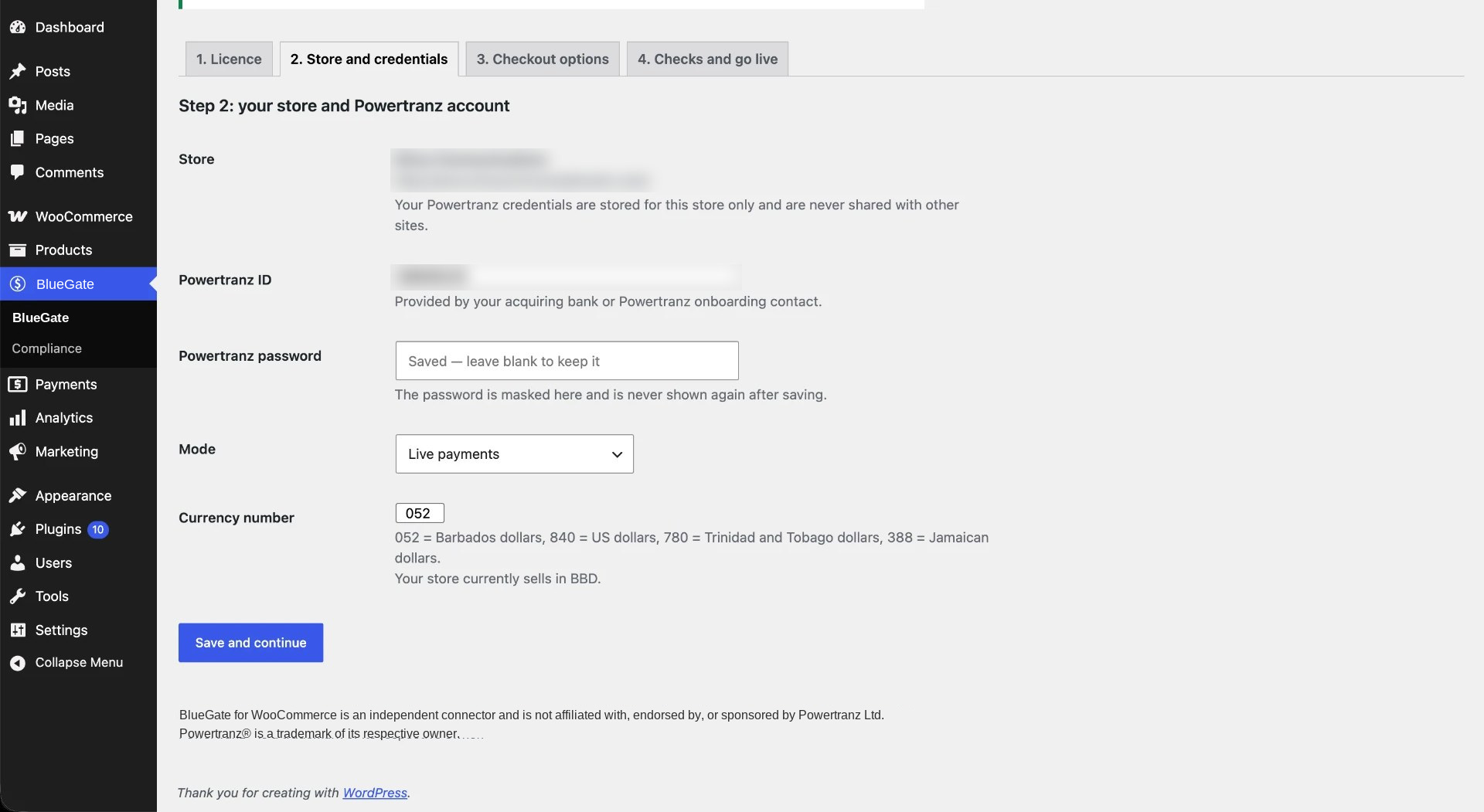
Open BlueGate, then Setup, and go to step 2. Enter the Powertranz ID and password your bank issued. The password is typed into a masked field and never displayed again after saving — if you come back later and leave it blank, the saved one is kept.
| Field | What to enter |
|---|---|
| Powertranz ID | The merchant identifier from your acquiring bank or Powertranz onboarding contact. |
| Powertranz password | The matching password. Stored for this store only and shown masked. |
| Mode | Start with Testing. Switch to Live payments only after an approved test order. |
| Currency number | The three-digit number for your settlement currency: 052 Barbados dollars, 840 US dollars, 780 Trinidad and Tobago dollars, 388 Jamaican dollars, 951 East Caribbean dollars. |
Step 3 — Choose how customers pay
On-site card fields or a Powertranz hosted page, plus the cards and checks you want.
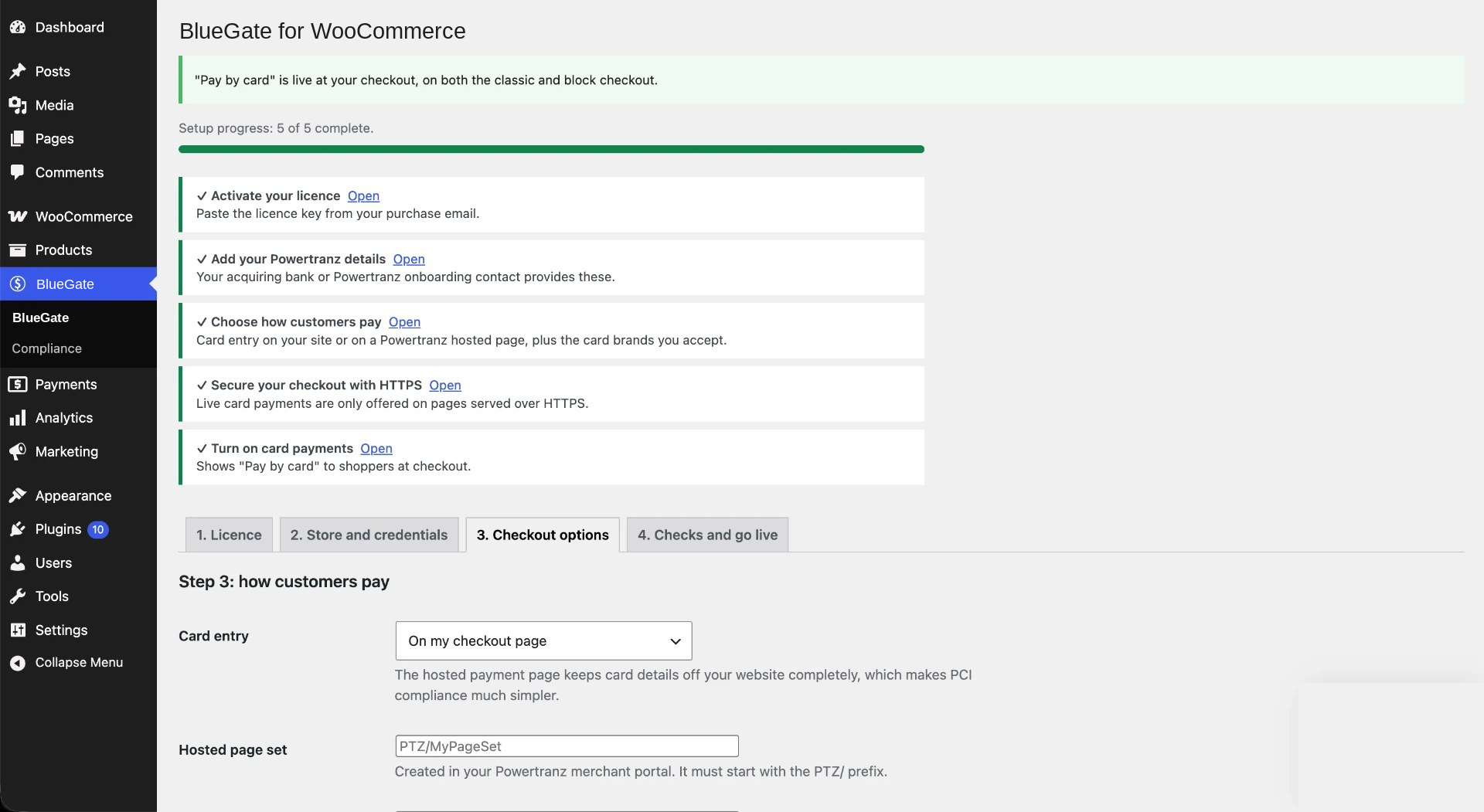
| Option | What it does |
|---|---|
| Card entry: on my checkout page | Customers type the card on your own checkout, classic or block based. Fastest experience, card data passes through your site to Powertranz but is never stored. |
| Card entry: Powertranz hosted page | Customers are taken to a payment form hosted by Powertranz. Card data never touches your website, which makes PCI compliance far simpler. |
| Payment type | Authorize and capture takes the money immediately. Authorize only holds the funds and lets you capture when you ship. |
| Accepted cards | Visa, Mastercard, American Express, Discover/Novus, Diners Club, JCB and Maestro. Only tick the brands your account is approved for — other brands are stopped before reaching your bank. |
| 3D Secure | Asks the cardholder's bank to verify the payment. Strongly recommended: it shifts most fraud liability away from you. |
| Address verification (AVS) | Sends the billing address with each payment so your bank can check it against the cardholder's records. |
| Saved cards | Lets returning customers pay with a stored card, and enables subscription renewals. Card details stay with Powertranz; your store only keeps a token. |
Using the hosted page? Create the page in your Powertranz merchant portal, then enter the page set and page name here. Page sets must start with the PTZ/ prefix, for example PTZ/MyPageSet, and your template must collect the cardholder name plus an email address or phone number — 3D Secure requires them.
Step 4 — Run the go-live checks
The plugin confirms everything before it will show Pay by card.
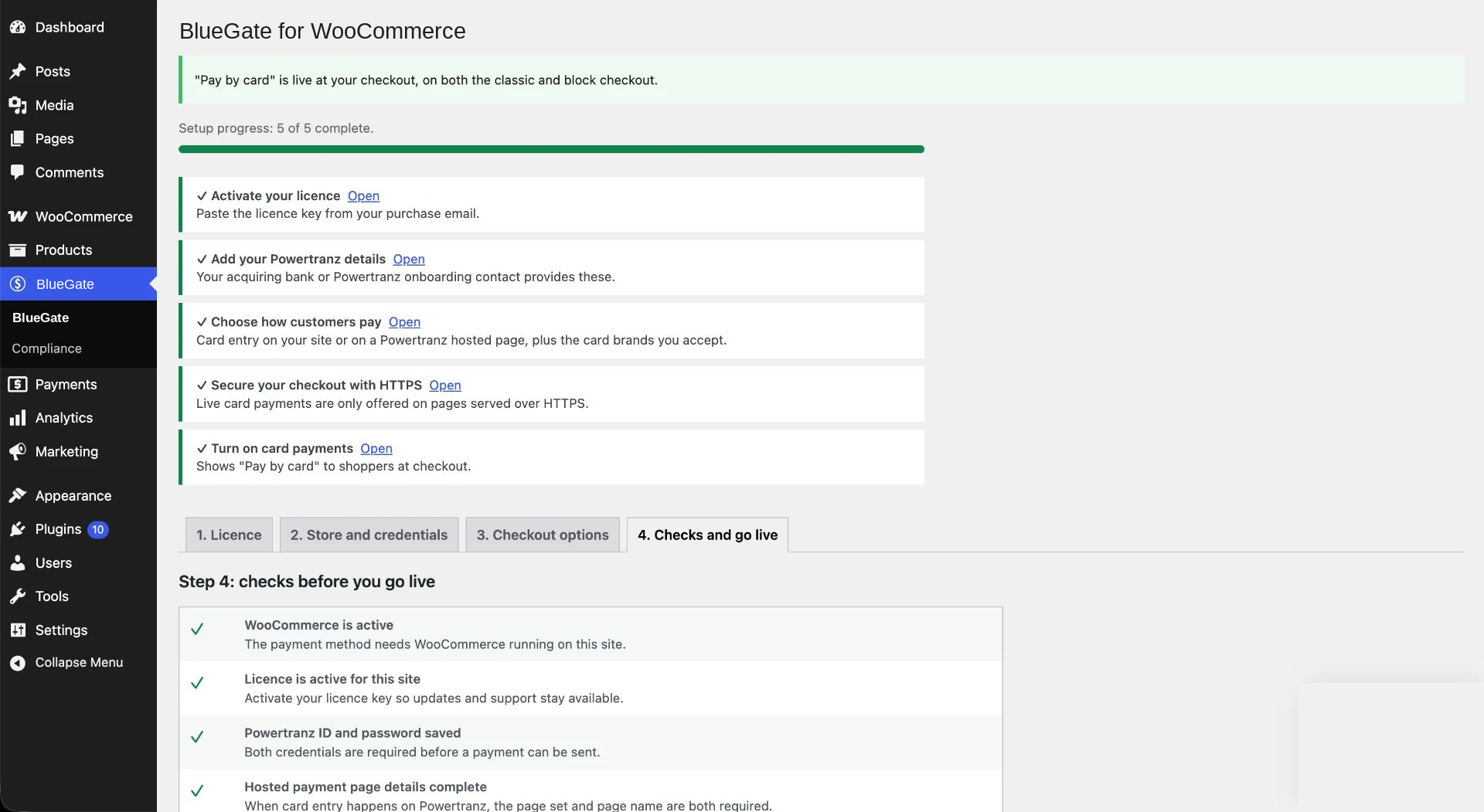
Step 4 of the setup screen runs a checklist and refuses to switch card payments on until the required items pass. Each line tells you what is wrong and how to fix it.
- WooCommerce is active on this site
- Licence is active for this site
- Powertranz ID and password are saved
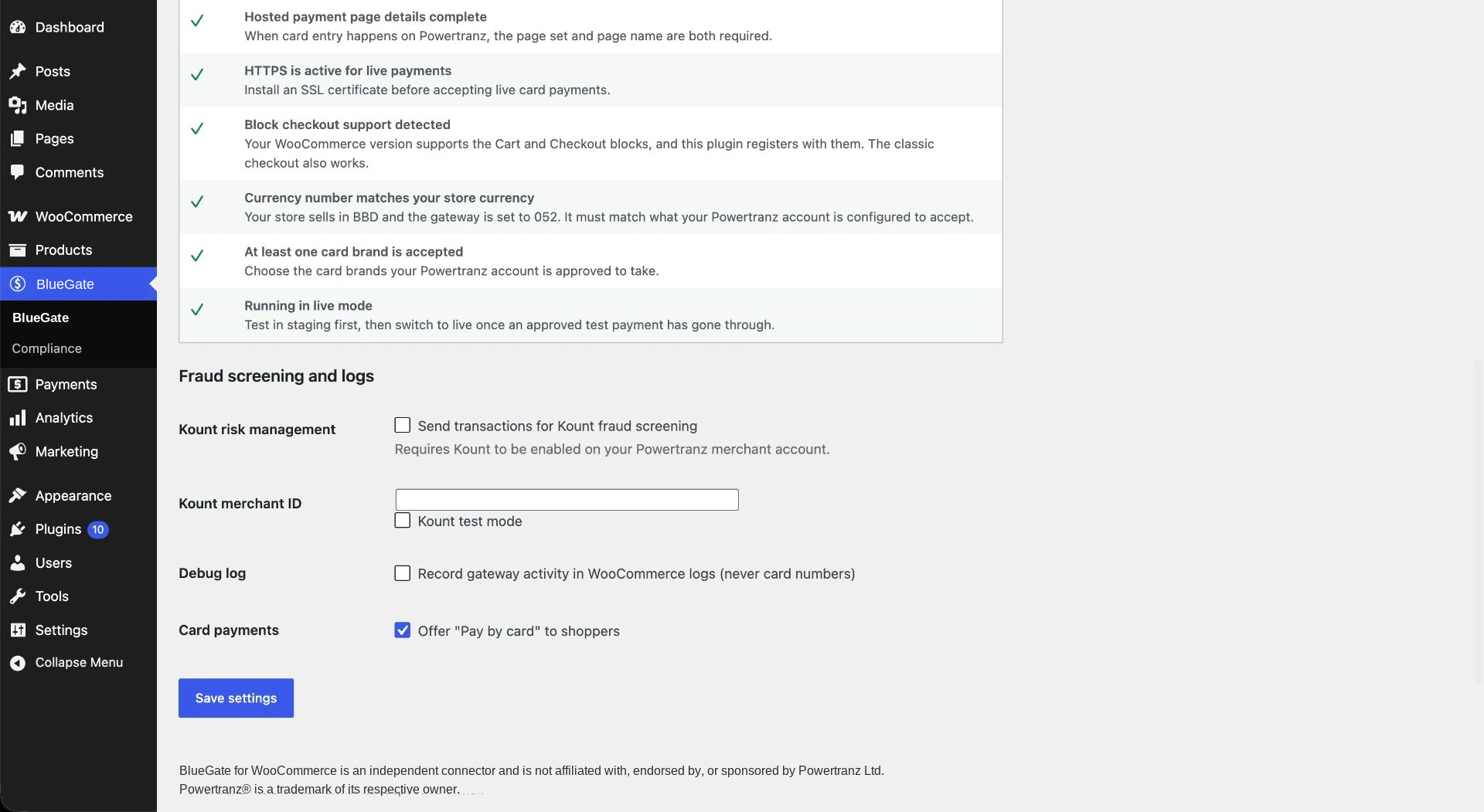
- Hosted payment page details are complete (if you chose hosted)
- HTTPS is active for live payments
- Block checkout support detected
- Currency number matches your store currency
- At least one card brand is accepted
Test before you go live
One full order in test mode, then flip the switch.
- 1Set Mode to Testing with credentials authorised for the Powertranz test environment.
- 2Place a real order through your own checkout using a test card supplied by Powertranz.
- 3Confirm the order reaches a paid status and shows a transaction reference in the BlueGate box.
- 4Run a refund from the order screen to confirm refunds work.
- 5Switch Mode to Live payments, then complete one small real transaction on your own card and refund it.
Running your store day to day
Refunds, capture, void and reading what the gateway said.
Everything below can be done from WordPress, without signing in anywhere else. The plugin also includes the same guidance on the BlueGate, Managing orders screen inside your WordPress admin.
| Task | Where |
|---|---|
| Capture an authorised payment | Open the order, then use Capture payment in the BlueGate box. |
| Cancel an authorisation | Use Void authorization in the same box. The order is cancelled and the hold released. |
| Refund fully or partially | Use WooCommerce's standard Refund button on the order. The original transaction is refunded through Powertranz. |
| See why a payment failed | Every attempt is written to the order notes with the approval or decline, the response code, the gateway's message and any AVS and CVV results. |
| Check gateway activity | Turn on the debug log in setup, then read WooCommerce, Status, Logs. Card numbers and security codes are never written there. |
Refund a payment in full:
- 1Open WooCommerce, then Orders, and open the order.
- 2Scroll to the list of items and select Refund.
- 3Select Refund the full amount, or type the full order total in the Refund amount box.
- 4Type a reason if you want one recorded on the order.
- 5Select Refund via BlueGate and confirm.
- 6Check the order notes. An approved refund records the amount, the reason and the Powertranz reference.
Refund part of a payment:
- 1Open the order and select Refund below the items.
- 2Enter the quantity or amount for each line being refunded, or type an amount in the Refund amount box.
- 3Select Refund via BlueGate and confirm.
- 4Repeat later if needed. The total refunded can never go above the order total.
Prefer to work in the Powertranz merchant portal? Refunds, voids and settlement reports can also be handled there with the same merchant account, at https://admin.ptranz.com/portal/Account/Login.
- 1Sign in to the portal with the details your acquiring bank issued.
- 2Find the transaction using the reference shown in the BlueGate box on the WooCommerce order.
- 3Refund or void it there.
- 4Return to the WooCommerce order, select Refund, enter the same amount and choose Refund manually so your records match without sending a second refund.
Other things you can do from the order screen: resend a receipt with Email invoice / order details to customer, change or cancel a subscription under WooCommerce, Subscriptions, and refund an individual renewal from its own order.
Recurring payments
Automatic renewals with WooCommerce Subscriptions.
Switch on saved cards and install WooCommerce Subscriptions to sell subscription products. The first payment securely stores the customer's card with Powertranz, and each renewal is charged automatically as a merchant-initiated recurring payment.
If a renewal is declined, the renewal order is marked failed with the gateway's reason so WooCommerce can retry it and email the customer. Customers can change the saved card from their account area.
Fraud and security
3D Secure, AVS, security codes and Kount.
- 3D Secure asks the cardholder's bank to verify the payment before it is approved.
- Address verification sends the billing address so the bank can compare it with the cardholder's records.
- The card security code is required on every on-site payment and is never stored.
- Kount risk management can score transactions before approval, with a test mode while you tune your rules. Kount must also be enabled on your Powertranz account.
- Card numbers are never saved to your WordPress database and never written to logs.
Updates and downloads
Staying current on a licensed site.
Licensed sites receive update notices inside WordPress, exactly like any other plugin — select Update and you are done. You can also download the latest ZIP from the Downloads page in your account at any time; those links are private and expire after 48 hours, so simply request a fresh one when you need it.
Troubleshooting
The handful of things that usually go wrong, and the fix.
| What you see | What to do |
|---|---|
| No payment methods at checkout | Open BlueGate, Setup, step 4 and look for a red check. Usually the licence, credentials or HTTPS is missing. A store in Coming soon mode also hides checkout from visitors. |
| BlueGate License opens a 404 or permission page | Update to version 1.9.4 or newer. This release corrects the WordPress menu order that caused the broken License link. |
| Pay by card missing on a block checkout | Update to version 1.3.0 or newer, which registers with the Cart and Checkout blocks, then reload the checkout page editor. |
| Payment declined immediately | Check the order notes for the gateway's response. A currency mismatch, a card brand your account is not approved for, or test credentials in live mode are the common causes. |
| Customer stuck on the verification screen | The cardholder's bank did not complete 3D Secure. Ask the customer to retry; if it repeats for everyone, confirm 3D Secure is enabled on your merchant account. |
| Hosted page does not load | The page set must start with PTZ/ and the page name must match exactly what is in your Powertranz merchant portal. |
| Refund button returns an error | The order must have an original transaction reference, and the refund must be within the window your acquirer allows. |
Frequently asked questions
Licensing, refunds, support and scope.
Do I need a Powertranz merchant account?
Yes. The plugin connects your store to your own account; it does not process or hold money itself.
What does the licence cover?
Each licence covers the number of sites in your plan, for one year, including every update and support.
What happens when my licence expires?
Renew from your account to keep updates and support. An expired licence stops card payments, so renew before the expiry date shown on your Licenses page.
Can I move the licence to another site?
Yes. Deactivate the old site from the plugin or from your Licenses page, then activate the new one.
Is there a refund policy?
Yes — 14 days. If the plugin will not work for your store, contact us and we will refund the purchase.
Where do I get help?
Use the contact page in your account. Include your licence key, WordPress and WooCommerce versions, and a copy of the order note showing the gateway's response.
Independent connector notice
Who we are, and who we are not.
BlueGate is an independent merchant payments platform and is not affiliated with, endorsed by, or sponsored by Powertranz Ltd.
Powertranz® is a trademark of its respective owner and is referenced only to identify the external payment gateway this plugin connects to using your own merchant credentials.